



Overview of Preparing Pay Stubs
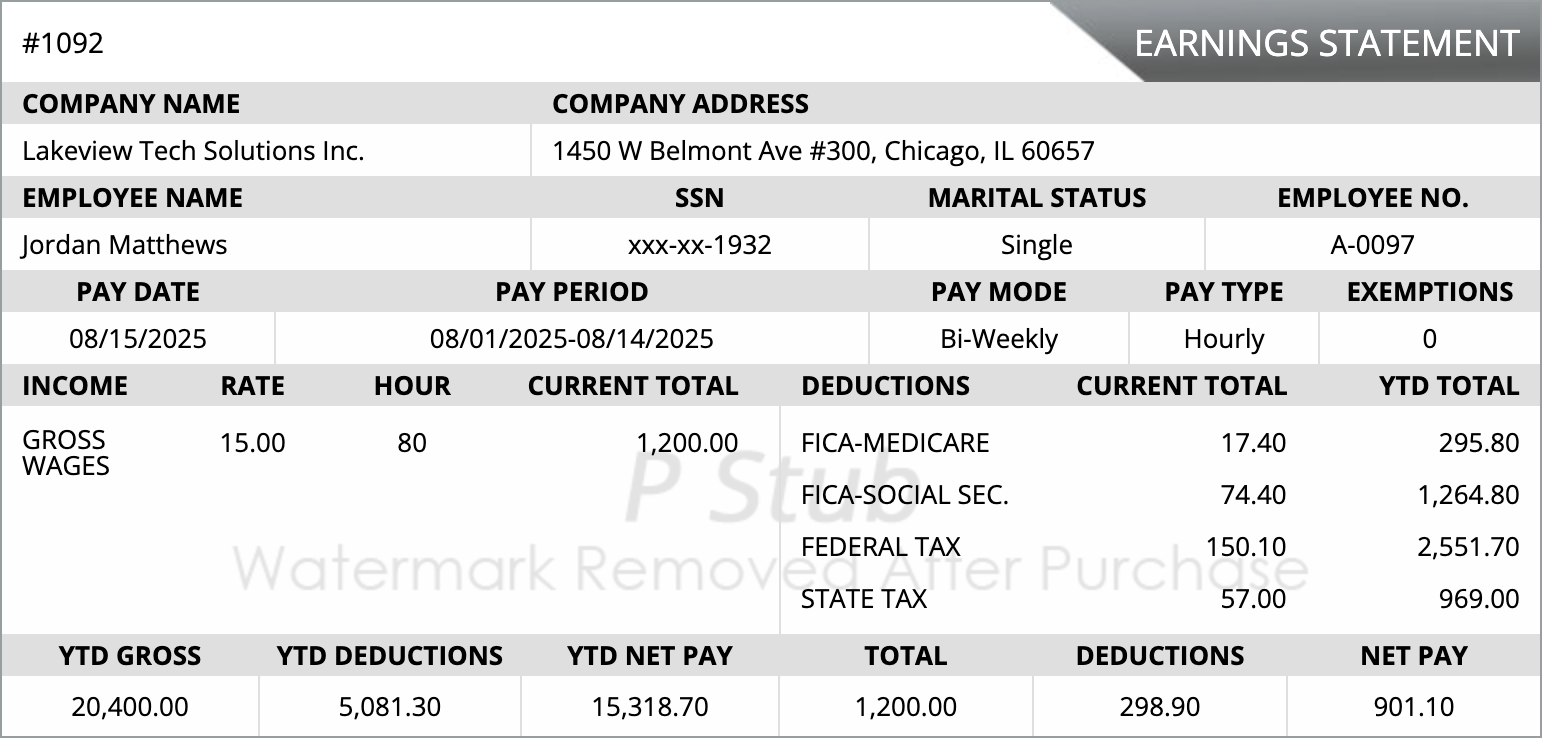
Preparing pay stubs accurately is crucial for payroll compliance and employee transparency. QuickBooks Desktop provides an easy-to-use platform to generate professional pay stubs reflecting gross pay, deductions, and net pay for each pay period.
Benefits of Using QuickBooks Desktop
- Streamlined payroll process
- Accurate calculation of earnings and deductions
- Easy digital record-keeping and reporting
- Compliance with federal and state payroll regulations
Step-by-Step Guide to Prepare Pay Stubs
- Open QuickBooks Desktop and access your company file.
- Go to the Employees menu and select Pay Employees.
- Choose the pay period and select the employees for whom you want to prepare stubs.
- Click Create Pay Stub or Email depending on delivery preference.
- Verify the pay details including hours, wages, and deductions.
- Save or send the pay stub and confirm successful generation.
Troubleshooting Common Issues
- Ensure employee information is correct in QuickBooks.
- Check payroll setup and tax tables for accuracy.
- Verify email setup if sending stubs digitally.
- Contact QuickBooks support if errors persist.
Frequently Asked Questions
Can I prepare pay stubs for multiple employees at once?
Yes, QuickBooks Desktop allows batch generation of pay stubs for selected employees.
Are pay stubs legally required?
Pay stubs may be required by state law, and they help employees track earnings and deductions.
Can I customize my pay stubs?
Yes, QuickBooks Desktop allows you to customize pay stub layout, fields, and messages.
What if I make a mistake in a pay stub?
You can void or correct pay stubs in QuickBooks Desktop and reissue them to employees.
Prepare Accurate Pay Stubs with QuickBooks Desktop
Follow this guide to create professional pay stubs that ensure compliance and employee transparency for every pay period.




 Cookies Settings
 Reject All
 Accept All Cookies
 Save & Close